
Installation & Documentation Guide
Step 1: Download the Bundle
Thank you for purchasing TRoo Divi Child Theme Master Bundle Pack – V2.0!
Step 2: Extract the Main Product ZIP File
Unzip the downloaded file on your computer.
Inside you will find two main folders:
📦 TRoo Divi Child Theme Master Bundle Pack – V2.0
│
├── 🛒 WooCommerce Themes
└── 💼 Other Divi Child Themes
Each folder contains the individual product ZIP files for each theme.
Step 3: Install Individual Themes
You can install any single theme from the pack — Please note, you cannot install all themes at once.
1. Log in to your WordPress Dashboard
2. Go to Appearance → Themes → Add New
3. Click Upload Theme
4. Select any individual theme ZIP file from the extracted folders
(for example: troo-cleaning-services-divi-child-theme.zip)
5. Click Install Now
6. Once installed, click Activate
Note: Repeat the same process for any other theme you wish to use.
Video Tutorials
We have included helpful video tutorials for easy setup:
👉 Note: The steps are the same for all themes.
1. How to Install Divi Other Child Themes
2. How to Install Divi WooCommerce Child Theme
Frequently asked questions
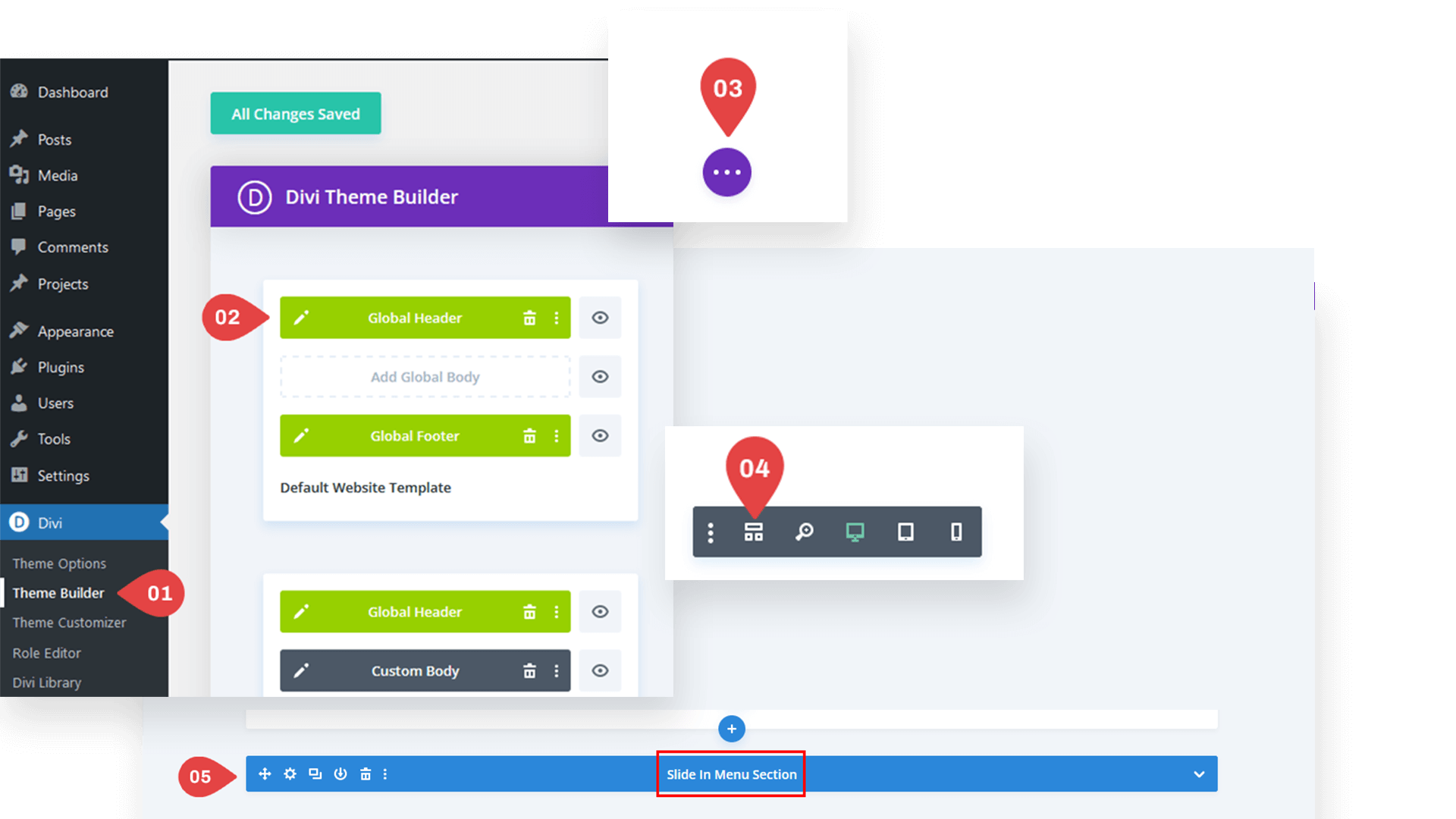
How do I customize the Slide-In template in the header?
Go to Divi → Theme Builder → Global Header.
Switch to Wireframe View.
Under the header, locate the Slide-In element.
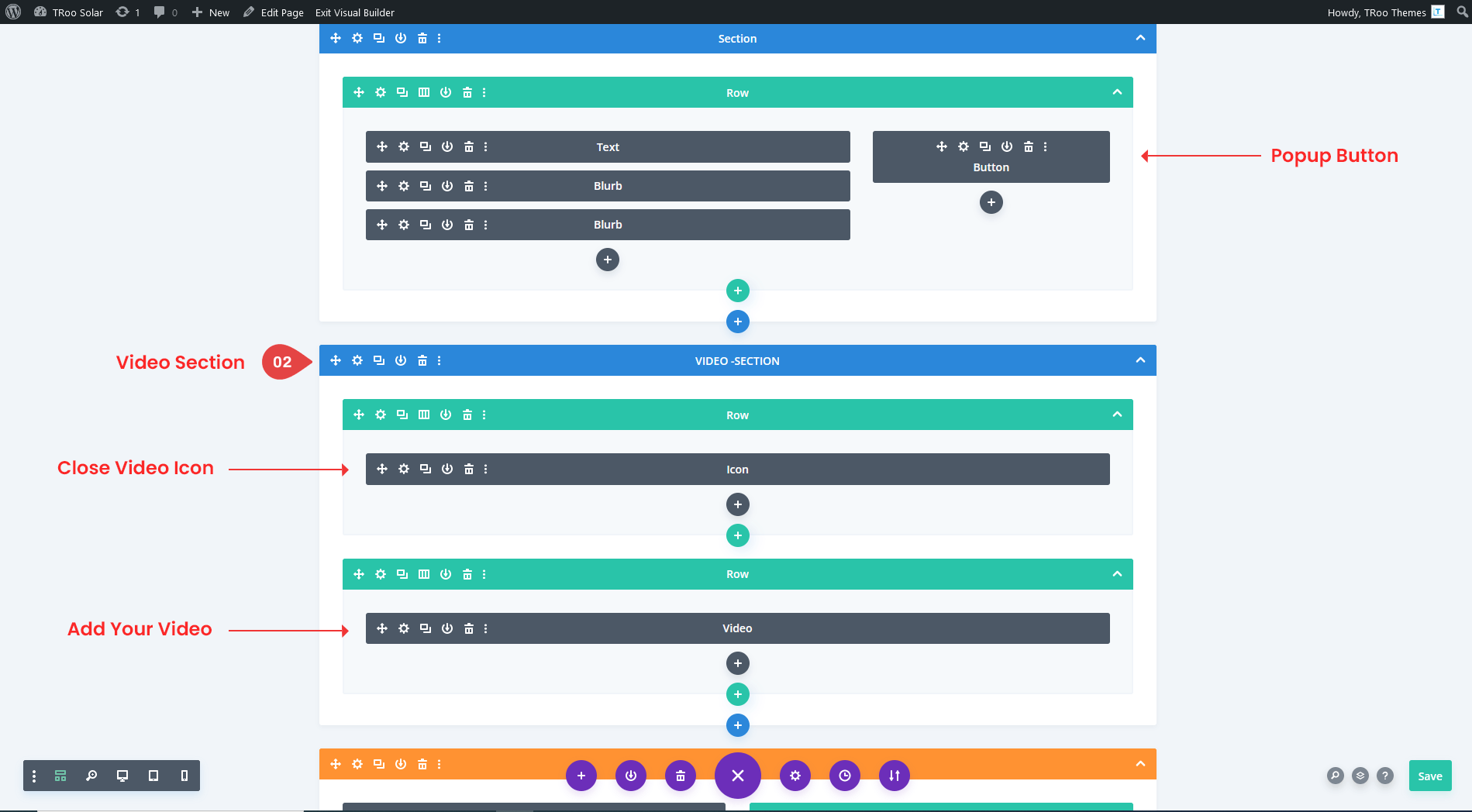
How do I customize the Popup Video?
Go to the page you want to edit.
Click Enable Visual Builder.
Switch to Wireframe View to locate the Popup Video element.
Problems importing the layout?
Need Any Help?
If you have any documentation related questions or need a video tutorial sooner please let us know at support@troothemes.com